
Importing contacts into LEADSORBIT allows you to quickly upload your existing leads, customers, or prospect lists into your CRM. This is particularly useful when migrating from another system or uploading bulk data for follow ups and campaigns.
Prepare Your Contact File
Before importing, ensure your contact file is clean and well organized to avoid errors and ensure smooth data import.
- Open your contact list in a spreadsheet tool such as Google Sheets or Excel.
- Ensure each column has a clear heading (e.g., First Name, Last Name, Email, Phone, Business Name, Lead Source).
- Remove empty rows, duplicate records, and unnecessary columns.
- Double check that phone numbers and email addresses are formatted correctly.
- Save the file in CSV format.
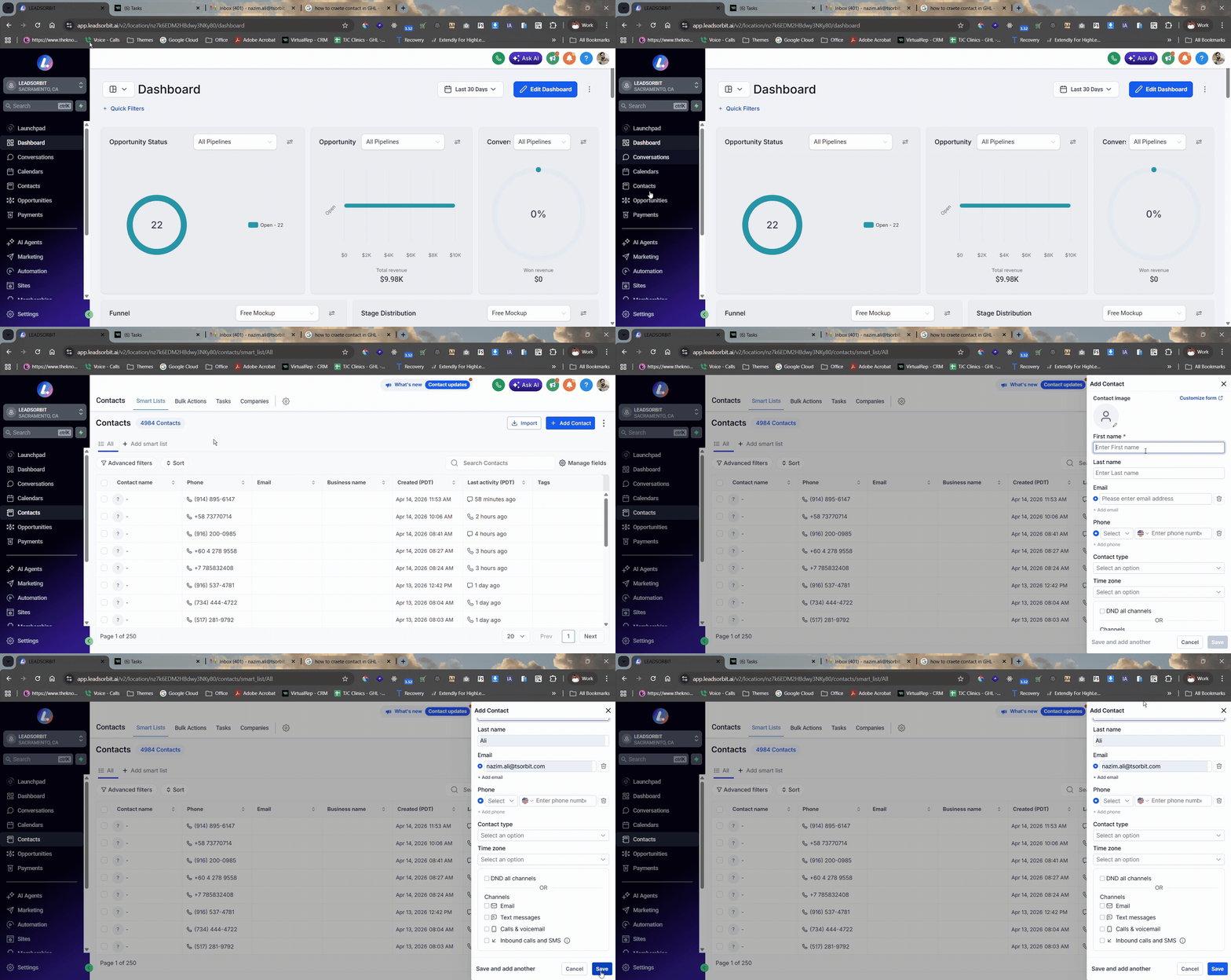
Import Contacts
Once your CSV file is ready, you can upload it into LEADSORBIT.
- Log in to your LEADSORBIT account.
- Navigate to Contacts from the main menu.
- Click the Import Contacts button.
- Upload the prepared CSV file.
- Choose import options such as adding tags or setting up duplicate handling preferences.
- Click Next to proceed with mapping fields.
Map Fields and Complete the Import
Field mapping ensures that each column in your CSV file is aligned with the correct contact field inside LEADSORBIT.
- Review each column in your uploaded file.
- Match each column to the correct LEADSORBIT field (e.g., First Name to First Name, Phone Number to Phone Number).
- For any unmatched data, create a new custom field if necessary.
- Leave unnecessary fields unmapped if not needed for your CRM.
- Review your settings and click Import to complete the process.
- Once the import is complete, confirm that your contacts have been added by reviewing your Contacts list.
Standard Contact Fields During Import
Below is a list of the standard contact fields that can be used when importing contacts into LEADSORBIT:
- Contact ID
- Name
- First Name
- Last Name
- Date of Birth
- Contact Owner
- Contact Source
- Contact Type
- Business Name
- Phone
- Address
- State
- City
- Postal Code
- Country
- DND (Do Not Disturb)
- Time Zone
- Website
- Additional Email
- Additional Phones
- Notes
Best Practices
- Clean your contact file: Ensure all columns are correctly formatted and contain relevant data.
- Use consistent column names: This simplifies field mapping and prevents errors.
- Add tags during import: This helps organize and categorize your contacts immediately.
- Test with a small file first: Before importing a large list, try uploading a small batch to ensure everything works as expected.
- Review duplicates: Check for duplicate contacts before starting the import to avoid redundancy.
Common Issues
- CSV file not uploading: Ensure the file is saved in CSV format and does not contain unsupported formatting.
- Data appears in the wrong fields: Double check your field mapping to make sure each column is mapped to the correct LEADSORBIT field.
- Duplicate contacts created: Review your duplicate handling settings before completing the import. Search for existing contacts before adding new ones.
- Missing data after import: Ensure that all required columns were included in your CSV file and mapped correctly during the import process.