
Tags in LEADSORBIT help you organize contacts, segment your audience, and trigger actions based on specific conditions. You can use tags to identify lead sources, services, locations, customer types, or follow up stages.
Create and Add Tags to a Contact
Follow these steps to create new tags and assign them to contacts for better segmentation and organization.
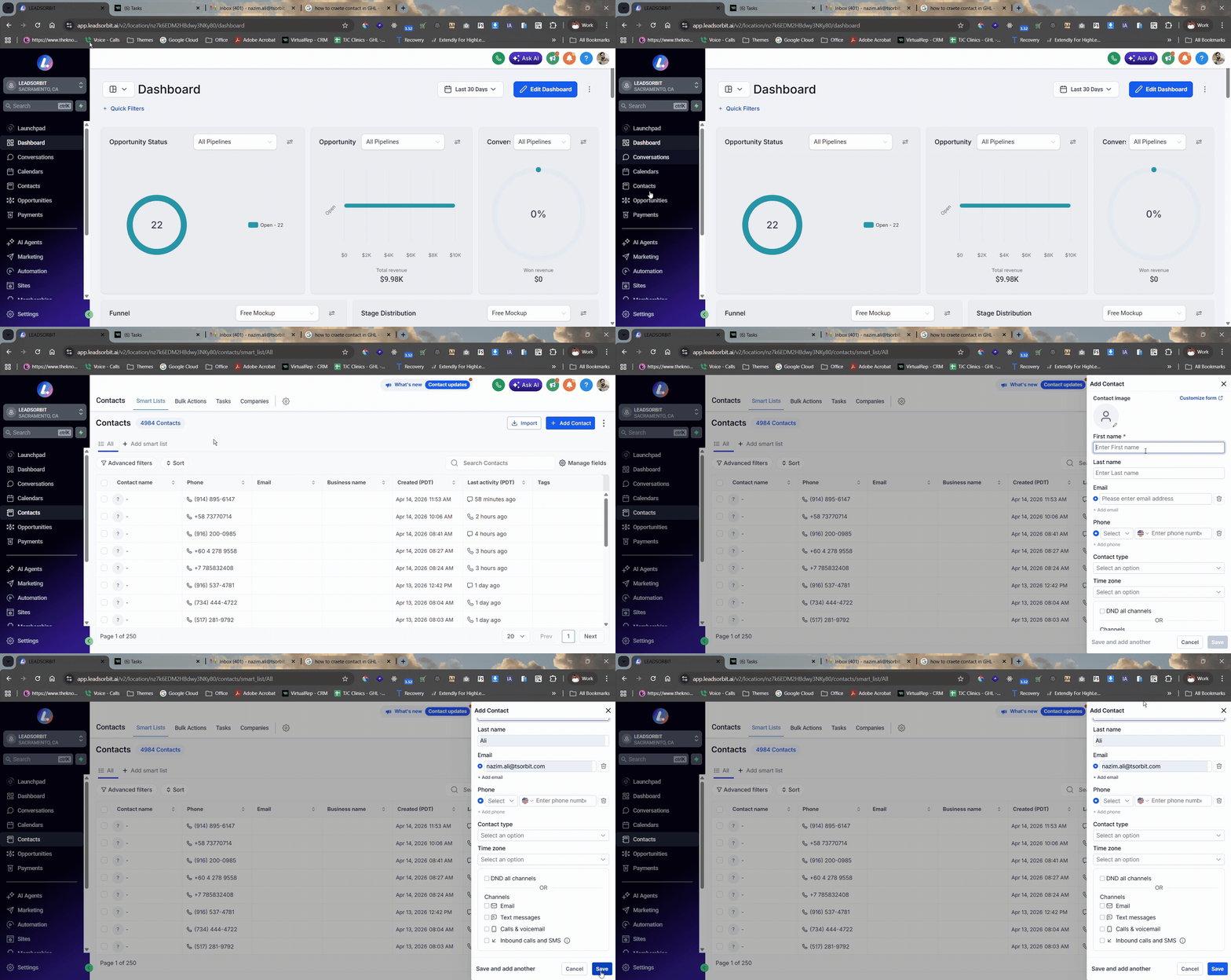
- Navigate to Contacts from the main menu.
- Open the contact profile you want to tag, or create a new contact.
- In the Tags section, type the name of the tag you want to create (e.g., New Lead, Website Inquiry, High Priority).
- Press Enter to create the tag.
- You can also select an existing tag from the dropdown list if it is already created.
- To assign the tag to the contact, click Save.
- Alternatively, you can create a new tag by typing it directly in the contact profile. Once the tag is created, it will automatically be applied.
Manage and Use Tags
Tags can be used across LEADSORBIT to organize contacts, trigger actions in workflows, or help segment for marketing campaigns.
- Use tags to filter contacts in the Contacts list based on criteria like lead status or source.
- Apply tags during contact import to instantly categorize bulk contacts.
- Create automation workflows that trigger actions like follow ups, messages, or tasks based on tags.
- Update or remove tags from contact profiles as needed.
- Create smart segments for campaigns by filtering contacts with specific tags.
Best Practices
- Use consistent naming for tags (e.g., Hot Lead, Follow Up, Converted).
- Keep tags organized to avoid too many similar variations.
- Use tags to track lead source (e.g., Facebook Lead, Google Ad) or customer status (e.g., Active, Prospective).
- Review your tags regularly and remove any that are outdated or redundant.
- Use tags to help trigger workflows for automatic follow up, reminders, or outreach.
Common Issues
- Tag not saving: Make sure to press Enter after typing the tag name, and ensure that there are no duplicate tags.
- Duplicate tags created: Check existing tags before creating a new one to avoid similar variations.
- Tag based automation not working: Verify that the workflow trigger is linked to the correct tag and that the tag is applied to the contacts.
- Unable to find contacts by tag: Make sure the tag is properly applied, and use the filter option in the Contacts list to search for it.