
Managing your contact list effectively is crucial for maintaining accurate customer records and ensuring smooth follow-ups. In LEADSORBIT, you can easily edit and delete contacts as needed.
Edit an Existing Contact
To keep your contact details up to date, follow these steps to edit an existing contact:
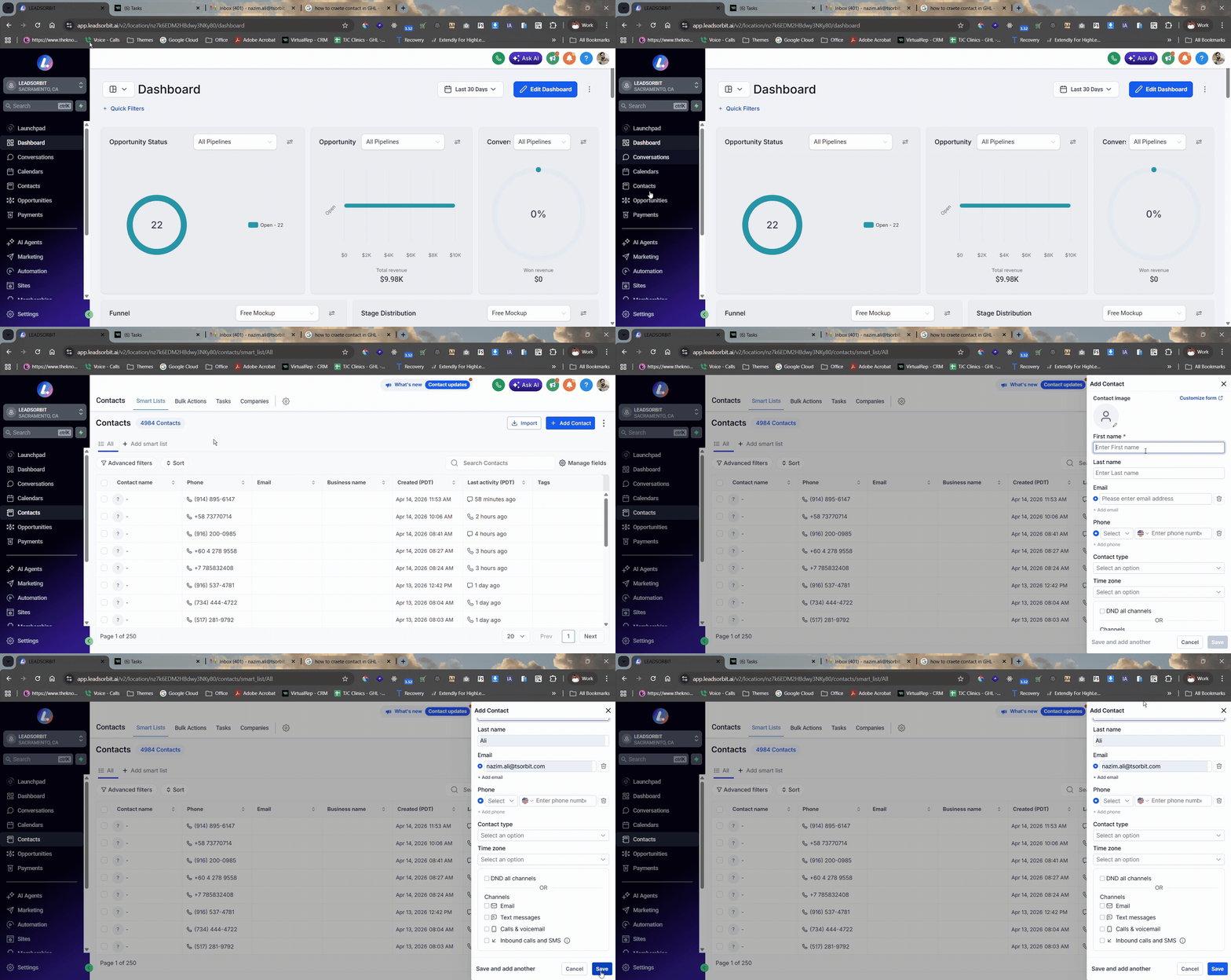
- Navigate to Contacts from the main menu.
- Search for the contact you want to edit.
- Click on the contact row to open the contact profile.
- Update the contact information:
- Change the name, email, or phone number
- Update tags or notes
- Modify custom field data if needed
- Review the updated information to ensure accuracy.
- Click Save to apply the changes.
Delete an Existing Contact
If you no longer need a contact, deleting it will remove all associated data like conversations, tasks, and opportunities.
- Navigate to Contacts from the main menu.
- Search for the contact you want to delete.
- Select the contact by clicking the checkbox next to their name.
- Click the Delete button.
- A confirmation popup will appear. Type DELETE in the box to confirm.
- Click Delete again to permanently remove the contact.
Best Practices
- Double-check details before making edits to avoid errors.
- Use tags and custom fields to help organize and categorize contacts for easier management.
- Only delete contacts when you are sure they are no longer needed, as it removes all associated data.
- Update contact information regularly to keep your database accurate.
Common Issues
- Changes not saving: Ensure all required fields are updated before clicking Save.
- Unable to find the contact: Search for the contact using the name, email, or phone number. Ensure that the contact is in the correct status or group.
- Unable to delete contact: Check your permissions. Ensure you have the appropriate rights to delete contacts within LEADSORBIT.
- Deleted contact not removed: Refresh your page to confirm the contact was removed from the system.