
Automated alerts in LEADSORBIT help keep your team informed when important events occur. By using workflow triggers and the Send Internal Notification action, you can automatically notify team members by email, in-app notification, SMS, or WhatsApp when specific workflow conditions are met.
Create a Workflow for Automated Alerts
Follow these steps to create a workflow that sends automated alerts to your team.
- Navigate to Automation → Workflows.
- Click Create Workflow.
- Choose Start from Scratch, Recipe, or Create with AI.
- Enter a name for your workflow.
- Add and configure the workflow trigger that will start the automation.
- Click Save Trigger.
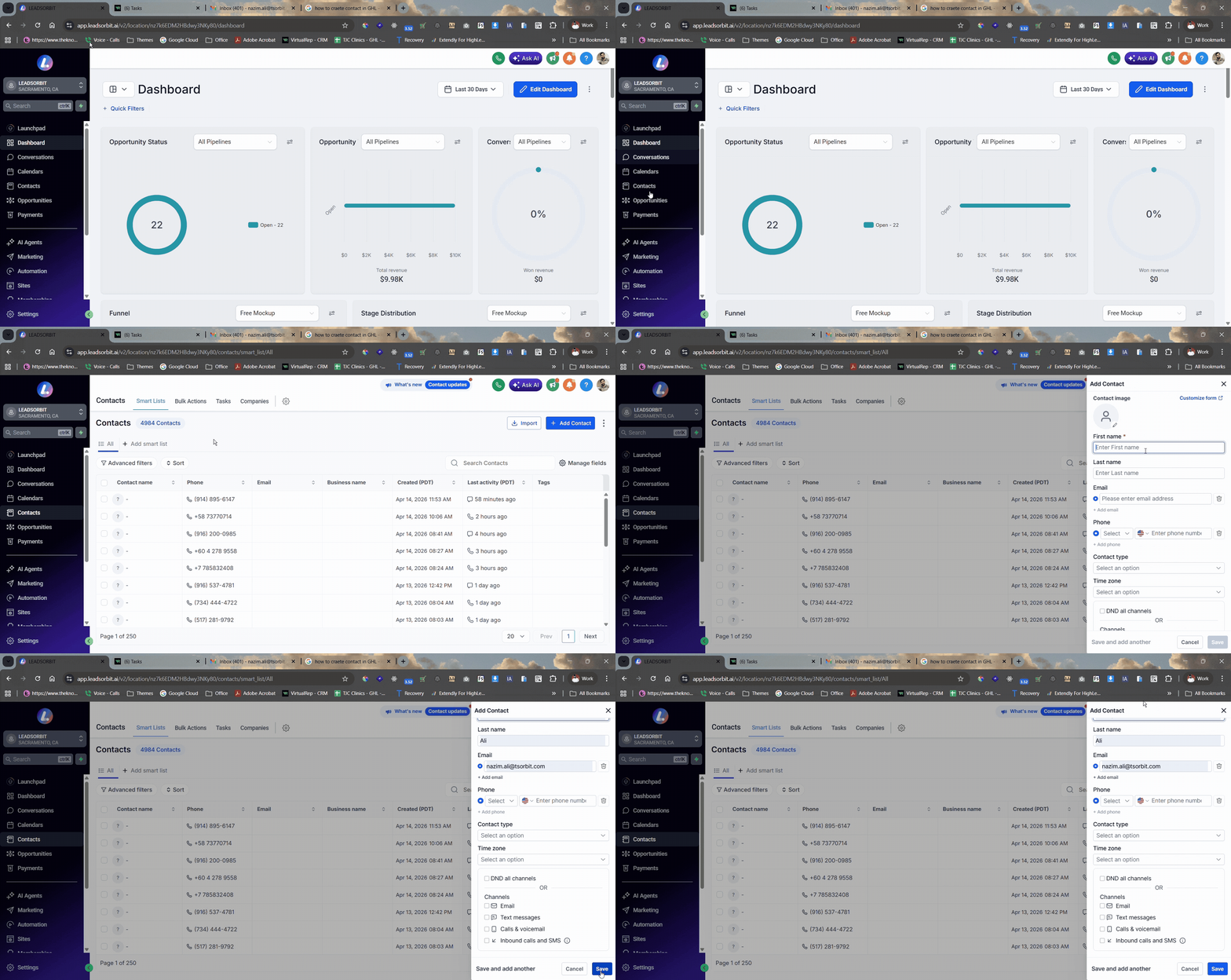
Set Up Internal Notifications
Once your workflow trigger is ready, you can configure automated alerts for your team members.
- Click the + icon below the workflow trigger.
- Select Send Internal Notification from the list of workflow actions.
- Enter a name for the notification.
- Choose the notification type (Email, In-App Notification, SMS, or WhatsApp).
- Select who should receive the notification, such as a specific user, assigned user, user role, or team.
- Enter the notification details and customize the message if needed.
- Click Save Action.
- Click Publish to activate the workflow.
Best Practices
- Use clear workflow names so they're easy to identify.
- Send alerts only for important events to avoid unnecessary notifications.
- Select the correct recipients before publishing the workflow.
- Test the workflow to confirm notifications are delivered correctly.
- Review your workflows regularly to ensure they continue to meet your team's needs.
Common Issues
- Notifications not being sent: Verify that the workflow is published and the trigger conditions have been met.
- Team member not receiving notifications: Confirm that the correct recipient was selected in the Send Internal Notification action.
- Wrong notification type selected: Review the notification settings and choose the appropriate delivery method.
- Workflow not triggering notifications: Check the workflow trigger configuration and make sure all required conditions are met.